Customizing the Panel Interface
In the control panel, you can customize the look to your taste — change the content size, background and block style
Step 1. Open settings
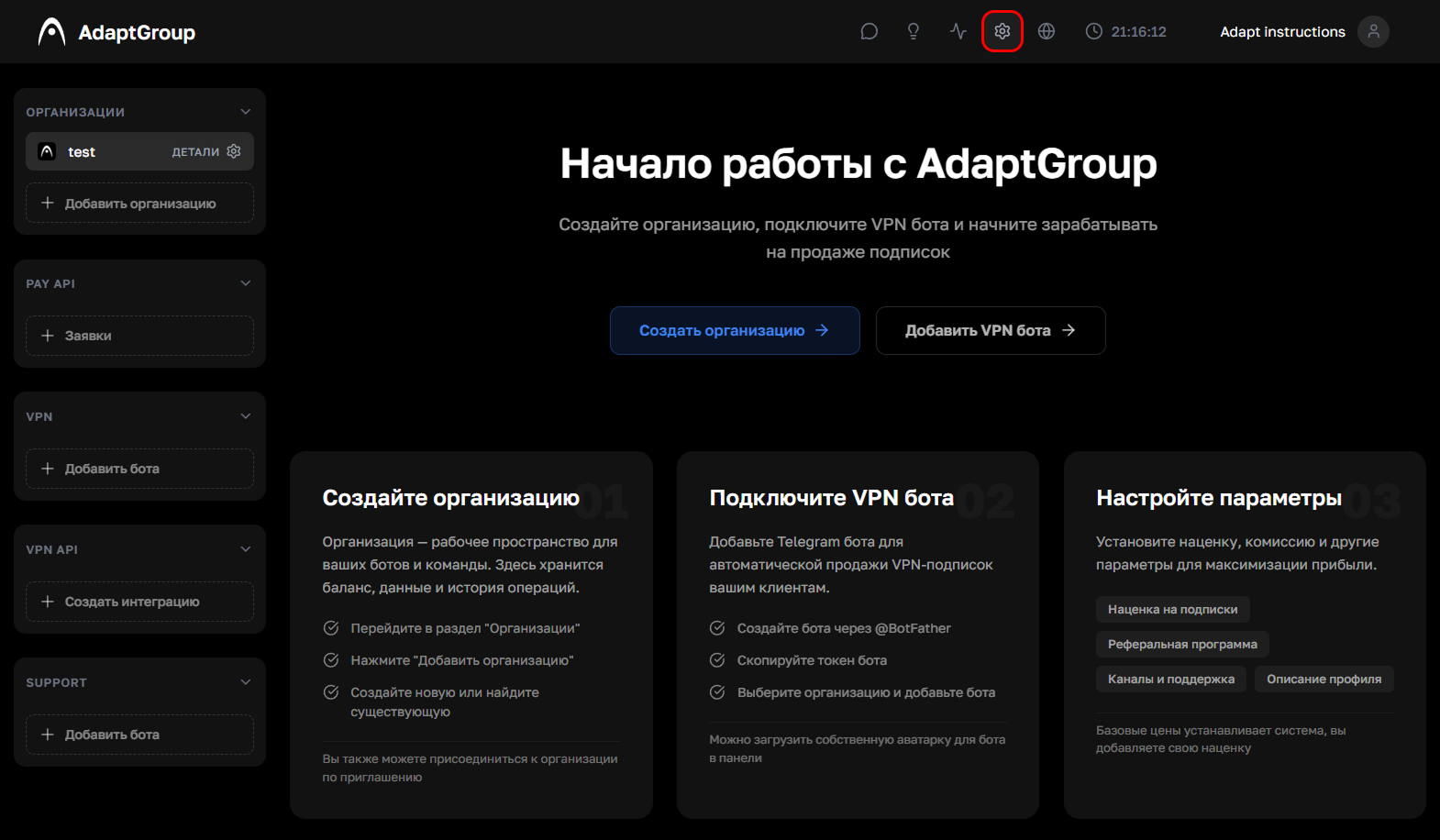
Click on the gear icon in the top navigation bar
Show screenshot
Step 2. Configure the general appearance
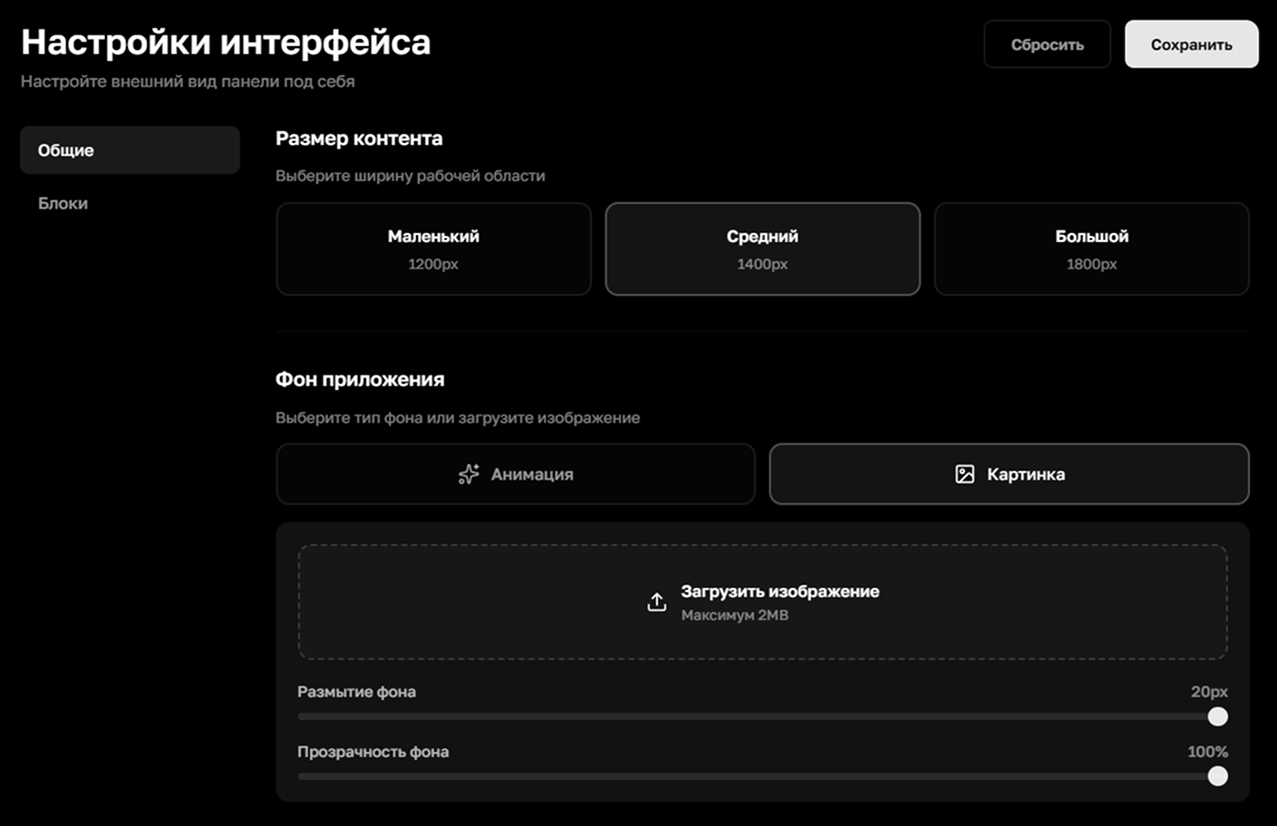
On the "General" tab you can configure the following
Content size — choose the width of the workspace: "Small" (1200px), "Medium" (1400px) or "Large" (1800px)
App background — upload your own image as a background (up to 2 MB) or choose the default animation. Then adjust the background blur and opacity using the sliders
When everything is ready, click "Save". If you want to restore the original settings, click "Reset"
Show screenshot
Step 3. Configure block style
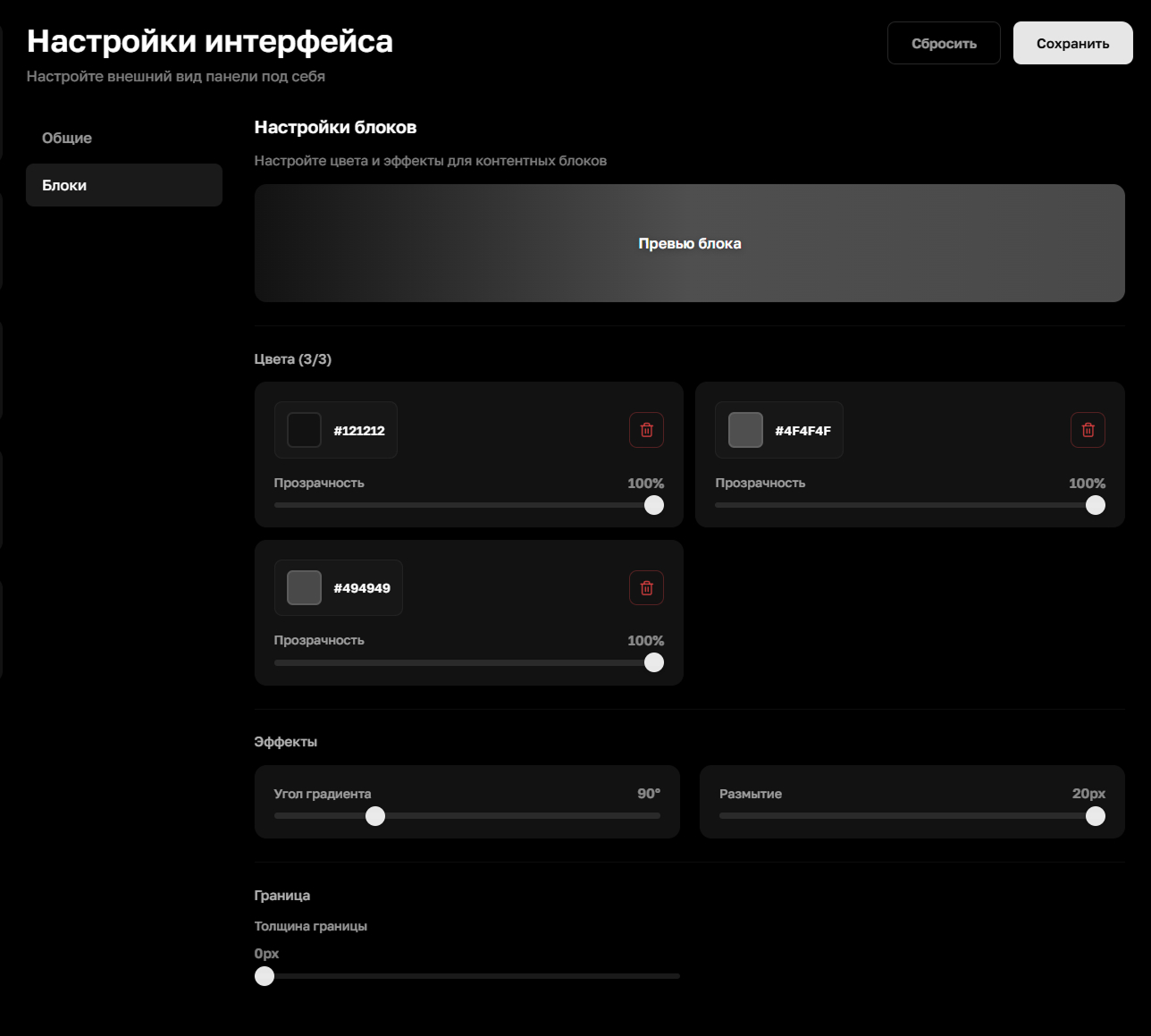
Go to the "Blocks" tab. Here you can customize the appearance of content blocks in the panel
Gradient — add up to 3 colors for the gradient background of blocks. Opacity can be configured separately for each color. You can also adjust the gradient angle and blur level
Border — adjust the border thickness of blocks
At the top of the page there's a "Block Preview" — it immediately shows how the blocks will look after saving, even before the changes are applied
Show screenshot